 Visual Enhancer
Interface & Controls
Visual Enhancer opens directly into Neural Rendering, keeping your active media viewport on the left, collapsible batch queue underneath, and reorderable stage inspector on the right.
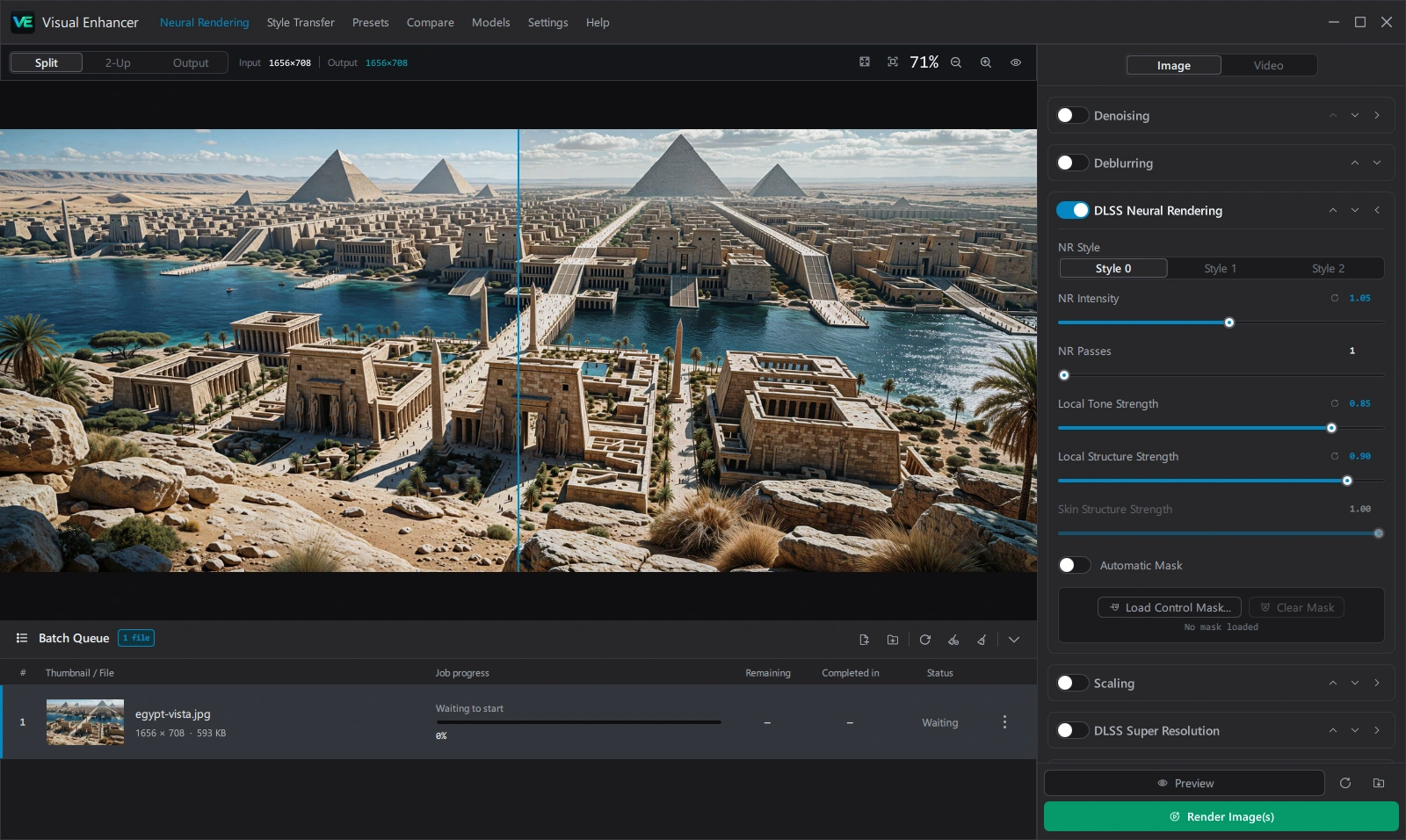
Header Bar
Section titled “Header Bar”Across the top navigation bar, switch workspaces or open global utilities:
- Neural Rendering: Primary multi-stage image and video restoration, upscaling, frame generation, LUT grading, and ReShade workspace.
- Style Transfer: Dedicated still-image palette, tone, and surface style transfer workspace with
.pngand After Effects.ffxexport. - Presets: Import or export complete
.jsonworkflow configurations. - Compare: Side-by-side, Cycle, Split View, and Difference heatmap comparison tool for multiple images or synced videos.
- Models: Download, resume, or remove AI models (
VisionNext,RazorNext,PeakMagnetar,OptiPulsar,ClearMagnetar,FocusPulsar,MoGe-2) and NeuroFrame Runtime. - Settings: Preferences for language, GPU / DirectX 12 / Vulkan device routing, AI framework (
CUDA,XPU,ROCm / HIP), realtime preview toggle, cache cleanup, and defaults reset. - Help: Open About diagnostics or jump directly to Logs in File Explorer.
Loading Media & Batch Queue
Section titled “Loading Media & Batch Queue”- Drag and drop files or folders into the viewport or queue drawer.
- Clipboard paste (Ctrl+V): Paste copied Explorer files, screenshots/image bitmaps, HTML
<img>tags, or directhttp:///https://image URLs (fetched up to30 MiB). - Batch Queue Drawer: Expands automatically when files are added, and can be resized or collapsed at any time. Displays thumbnails, dimensions, frame counts, progress per stage, FPS, elapsed/remaining estimates, and right-click actions. Press Delete (when not editing text) to clear the active queue.
Viewport & Preview Controls
Section titled “Viewport & Preview Controls”- Image View Modes: Switch between Split (interactive draggable curtain; double-click divider to center at
50%), 2-Up (side-by-side panes), and Output (hold Space in Output view to peek at the original input). - Video View Modes: Switch between Input, Output, and 2-Up (synced dual playback). In Input or Output view with a rendered preview ready, press and hold the left mouse button anywhere on the video frame for a momentary Hold-to-Peek comparison.
- Zoom & Pan: Scroll wheel zooms (
Zoom out/Zoom in), drag to pan, Fit (0 in Image mode) / double-click fits the frame, and 100% (1 in Image mode) inspects pixel-for-pixel. - Focus Preview (Ctrl+Shift+F): Hides the right inspector and queue drawer so the viewport fills the window.
- Right-Click Viewport Menu: Clear current item, Clear all, or Show in Explorer.
Video Transport Bar
Section titled “Video Transport Bar”In Video mode, the bottom timeline provides frame-accurate transport (Home, previous/next frame, Play/Pause, End), hover timestamp + Frame X of Y tooltip, volume mute/slider, and playback speed (0.5x, 1x, 1.5x, 2x).
When DLSS Frame Generation, AMD FSR 3, or rendered video previews are generated for a clip segment, the timeline marks covered preview ranges with green highlights on the groove—during playback, Visual Enhancer automatically transitions cleanly into the processed preview segment and back to source footage outside it.
Pipeline Inspector & Action Footer
Section titled “Pipeline Inspector & Action Footer”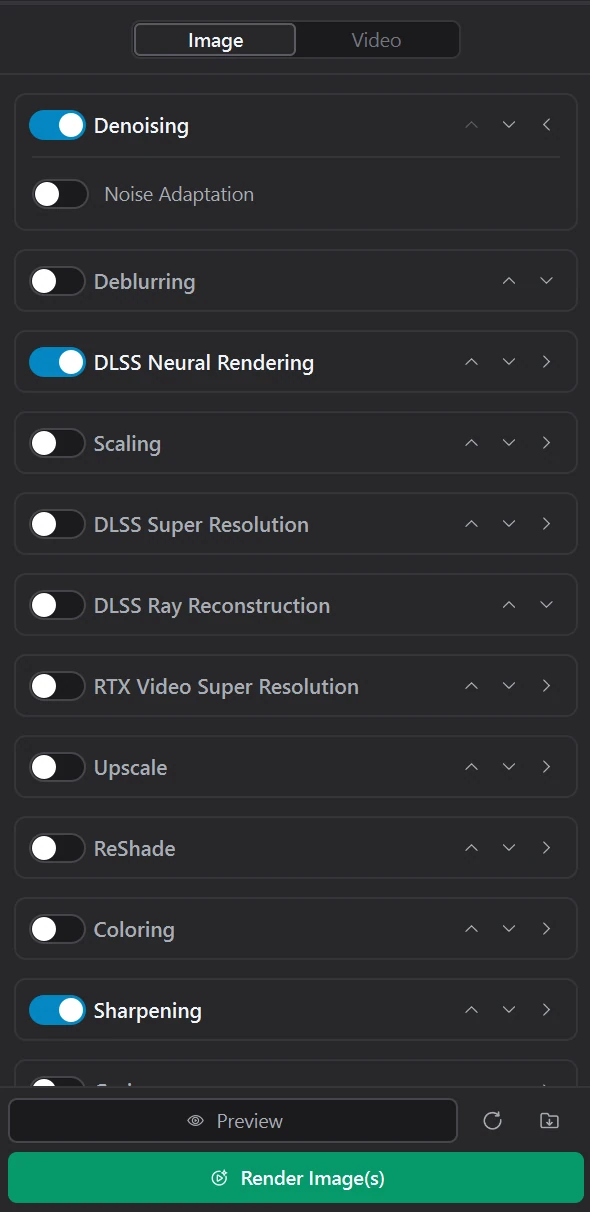
- Image / Video Mode Switch: Toggles the inspector and queue between still images and video clips.
- Stage Cards: Drag cards vertically to change execution order, toggle individual switches on/off without losing settings, or expand cards to tune parameters.
- Bottom Footer:
- Preview + Preview Length dropdown (Video mode:
1 s–30 s): Renders an interactive preview at the current playhead frame/segment. - Reset: Resets settings for the active tab back to defaults.
- Open outputs folder: Opens the
<app-folder>\outputs\directory. - Render Image(s) / Render Video(s): Opens Export / Start (
ExportDialog) to pickExport Path(Same as Input,Output, orSelect Folder),Rename Mode, and output codec/format before batch encoding. Turns into Stop while rendering.
- Preview + Preview Length dropdown (Video mode:
Keyboard Shortcuts
Section titled “Keyboard Shortcuts”| Shortcut | Context | Action |
|---|---|---|
| Ctrl+V | Batch / Compare tab | Paste files, images, or URLs from clipboard |
| Delete | Batch tab | Clear active queue |
| Ctrl+Shift+F | Global | Toggle Focus Preview (hide sidebars/queue) |
| F11 | Global | Toggle fullscreen window |
| Space | Image (Output view) |
Hold to peek at original input |
| Space | Video / Compare (Cycle) |
Play/Pause video, or advance source in Compare Cycle |
| Left / Right | Video / Compare | Step -1 / +1 frame (or cycle sources in Compare Cycle) |
| 0 / 1 | Image viewport | Fit to window (0) / Zoom to 100% (1) |
| Alt+Up / Down | Compare media list | Reorder sources in the Compare queue |