 Visual Enhancer
Export & Formats
Clicking Render Image(s) or Render Video(s) opens the Export Settings dialog configured for the active Image or Video mode.
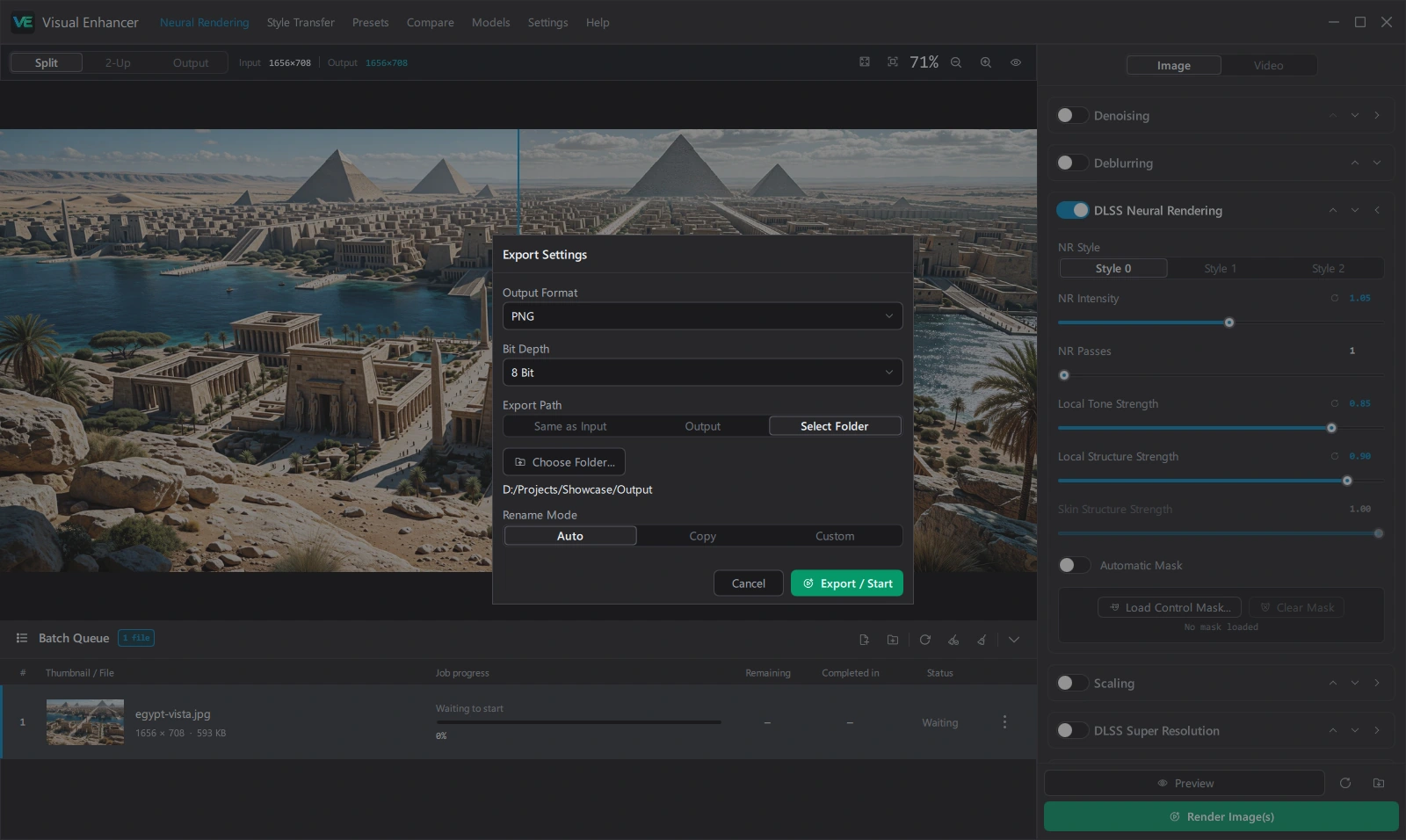
Still Image Formats
Section titled “Still Image Formats”| Format | Supported Bit Depths | Quality Slider (1–100) |
Key Behavior |
|---|---|---|---|
| PNG | 8 Bit, 16 Bit |
— | Lossless raster output with alpha preservation |
| TIFF | 8 Bit, 16 Bit |
— | Uncompressed / lossless archival output |
| JPEG XL | 8 Bit, 16 Bit |
1–100 (100 triggers lossless) |
Exposes Lossless compression, Encoding effort (1–10, default 7), and Progressive decoding |
| AVIF | 8 Bit |
1–100 (default 95) |
High-efficiency still compression |
| WebP | 8 Bit |
1–100 (default 95) |
Alpha supported; dimensions capped at 16,383 × 16,383 px |
| JPEG | 8 Bit |
1–100 (default 95) |
Transparency is composited over white before RGB encoding; 4:4:4 chroma sampling |
Video Codecs & Container Matrix
Section titled “Video Codecs & Container Matrix”| Video Codec | Encoder | Max Dimensions | Even / Alignment Rule | 10-bit HDR | Allowed Containers | Default Container |
|---|---|---|---|---|---|---|
| H.264 | libopenh264 |
4,096 × 4,096 (<= 36,864 macroblocks) |
Even width & height | SDR only | MP4, MKV, MOV |
MP4 |
| H.264 (NVIDIA NVENC) | h264_nvenc |
4,096 × 4,096 |
Even width & height | SDR only | MP4, MKV, MOV |
MP4 |
| H.265 | libkvazaar |
32,768 × 32,768 |
Divisible by 8 on width & height | SDR only | MP4, MKV, MOV |
MKV |
| H.265 (NVIDIA NVENC) | hevc_nvenc |
8,192 × 8,192 |
Even width & height | Yes (p010le) |
MP4, MKV, MOV |
MKV |
| AV1 | libsvtav1 |
16,384 × 8,704 |
Even width & height | Yes (yuv420p10le) |
MP4, MKV, WEBM |
MKV |
| AV1 (NVIDIA NVENC) | av1_nvenc |
8,192 × 8,192 |
Even width & height | Yes (p010le) |
MP4, MKV, WEBM |
MKV |
| VP9 | libvpx-vp9 |
32,768 × 32,768 |
None (odd dimensions OK) | Yes (yuv420p10le) |
WEBM, MKV, MP4 |
WEBM |
| ProRes Proxy | prores_ks (profile 0) |
32,768 × 32,768 |
None | Yes (yuv422p10le) |
MOV, MKV |
MOV |
| ProRes HQ | prores_ks (profile 3) |
32,768 × 32,768 |
None | Yes (yuv422p10le) |
MOV, MKV |
MOV |
| FFV1 Lossless RGB 10-bit | ffv1 (level 3) |
32,768 × 32,768 |
None | Yes (gbrp10le) |
MKV only |
MKV |
Encoding Quality Tiers
Section titled “Encoding Quality Tiers”For codecs with variable quality control, Encoding Quality sets constant-quality targets (Auto (Default), Good, Best, Max):
- Auto (Default): Balanced quality and file size.
- Good: High visual quality with moderate compression.
- Best: Very high visual quality with lighter compression.
- Max: Prioritizes fidelity over file size (
crf=0/ lossless mode onVP9,AV1,H.265; near-losslesscq 1/qp 1on NVENC / H.264; highest bits-per-macroblock onProRes Proxy). Files can be very large. - Fixed by codec: ProRes HQ and FFV1 Lossless RGB 10-bit lock their quality automatically and hide the quality dropdown.
Preserve / Export 10-bit HDR
Section titled “Preserve / Export 10-bit HDR”Enable Preserve / Export 10-bit HDR in Export Settings whenever:
- Your input video is already HDR (PQ
smpte2084/ HLGarib-std-b67BT.2020) and you want to keep HDR metadata and 10-bit precision on output. - You enable the RTX Video HDR pipeline stage (
SDR -> HDRconversion).
Both cases require an HDR-capable codec (H.265 (NVIDIA NVENC), AV1, AV1 (NVIDIA NVENC), VP9, ProRes Proxy, ProRes HQ, or FFV1 Lossless RGB 10-bit). H.264 and software H.265 (Kvazaar) are 8-bit SDR only.
Audio & Metadata Handling
Section titled “Audio & Metadata Handling”- Visual Enhancer tests every audio track in the source video against your chosen output Container.
- Compatible tracks are stream-copied losslessly (
-c:a copy). - Incompatible tracks (for instance, AAC or PCM entering a
WEBMcontainer) are automatically transcoded to192 kbpsOpus (forWEBM) or AAC (forMP4/MOV/MKV). - Image EXIF/ICC metadata is read cleanly, orientation tags are normalized after pixel rotation, and Render embeds a non-intrusive processing description note when exporting stills.
Export Path & Filename Rules
Section titled “Export Path & Filename Rules”When starting a batch export via Export / Start (ExportDialog), choose where rendered files land and how they are named:
- Export Path:
- Same as Input: Writes alongside each original file.
- Output: Writes into the portable
<app-folder>\outputs\directory. - Select Folder: Writes into any user-selected folder (
Choose Folder...).
- Rename Mode:
- Auto: Appends
_visual_enhancerto the filename stem and adds an incrementing number if a matching file already exists. - Copy: Keeps the original filename stem (adds numeric suffix if the destination file already exists).
- Custom: Appends your Custom Suffix (for example
_Upscale, avoiding Windows reserved filename characters<>:"/\|?*).
- Auto: Appends
Zero-Stage Pass-Through Conversion
Section titled “Zero-Stage Pass-Through Conversion”You do not need an active AI stage or even an RTX GPU to convert media formats. Leave all pipeline cards disabled in the Pipeline rail and click Render:
- Images are decoded cleanly (including 38 camera RAW formats,
HEIF,JPEG XL,AVIF,SVG,PNG,TIFF) and re-encoded to your chosen Output Format and Bit Depth. - Videos are decoded and re-encoded to your selected Video Codec, Container, Encoding Quality, and 10-bit HDR target while preserving compatible audio tracks.