 Visual Enhancer
Pipeline Overview
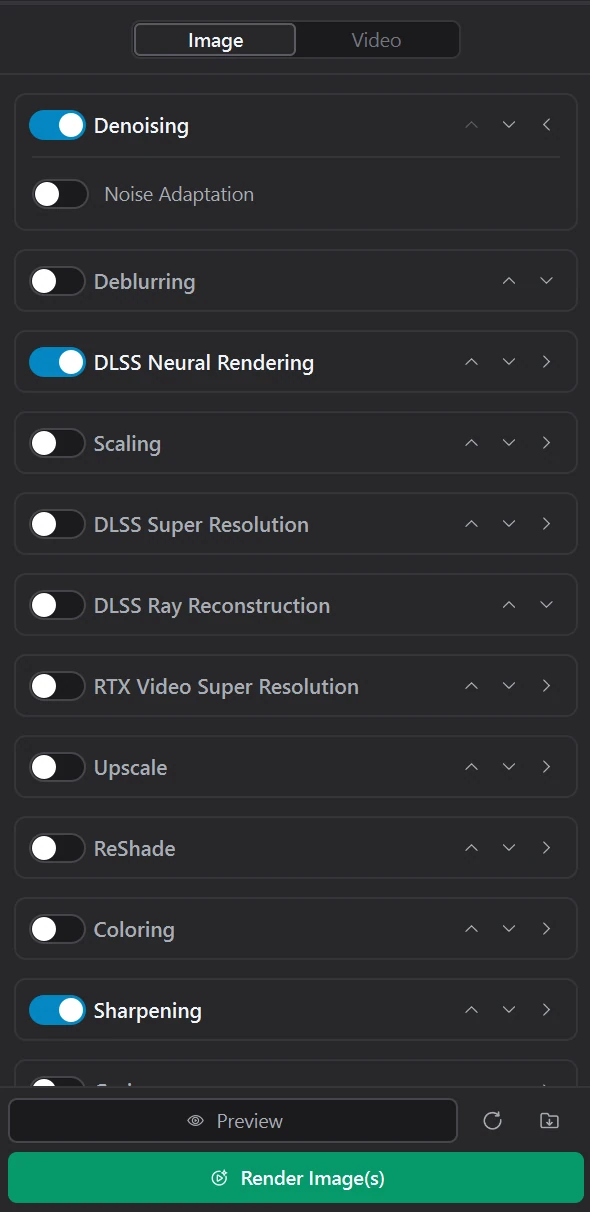
Visual Enhancer builds your processing graph as a vertical stack of stage cards in the Pipeline rail. Enabled cards execute strictly from top to bottom, passing each stage’s output directly into the next active stage.
Default Stage Order
Section titled “Default Stage Order”All stages start disabled until you toggle them on. Image mode exposes 12 stages, while Video mode expands the stack to 18 stages with HDR conversion, frame generation, and NVIDIA VFX video cards.
| Order | Image Pipeline (12 Stages) | Video Pipeline (18 Stages) | Focus Area |
|---|---|---|---|
| 1 | Denoising | Denoising | Cleanup |
| 2 | Deblurring | Deblurring | Cleanup |
| 3 | DLSS Neural Rendering | DLSS Neural Rendering | DLSS Neural Rendering |
| 4 | Scaling | Scaling | Upscaling |
| 5 | DLSS Super Resolution | DLSS Super Resolution | Upscaling |
| 6 | DLSS Ray Reconstruction | DLSS Ray Reconstruction | Ray Reconstruction & Motion |
| 7 | RTX Video Super Resolution | RTX Video Super Resolution | Upscaling |
| 8 | Upscale | Upscale | Upscaling |
| 9 | — | RTX Video HDR | Color, HDR & ReShade |
| 10 | — | DLSS Frame Generation | Ray Reconstruction & Motion |
| 11 | — | FSR Frame Generation | Ray Reconstruction & Motion |
| 12 | ReShade | ReShade | Color, HDR & ReShade |
| 13 | Coloring | Coloring | Color, HDR & ReShade |
| 14 | Sharpening | Sharpening | Finishing |
| 15 | Grain | Grain | Finishing |
| 16 | — | Video Super Resolution | Ray Reconstruction & Motion |
| 17 | — | Upscale (Lightweight) | Ray Reconstruction & Motion |
| 18 | — | Video Frame Generation | Ray Reconstruction & Motion |
Managing & Reordering Cards
Section titled “Managing & Reordering Cards”- Enable or bypass: Toggle the switch on the right side of any card to include or skip that stage without losing its parameter values.
- Inspect controls: Click the card header or chevron to expand its settings. Deblurring and Image-mode DLSS Ray Reconstruction contain no extra controls and remain single-row toggles.
- Reorder execution: Drag any stage card by its title bar, or use the card’s up/down buttons, to change when it runs relative to other stages (for example, placing Scaling after an AI upscaler to downsample cleanly, or moving Coloring before Grain).
- Reset defaults: Click Reset neural rendering settings at the bottom of the panel to restore default stage order and parameters for the active workflow while keeping your GPU device, container, and codec choices intact.
Critical Ordering & Compatibility Rules
Section titled “Critical Ordering & Compatibility Rules”SDR-Before-HDR Rule (RTX Video HDR)
Section titled “SDR-Before-HDR Rule (RTX Video HDR)”RTX Video HDR converts standard dynamic range (SDR) video into 10-bit PQ HDR (BT.2020 / SMPTE ST 2084). Because several enhancement stages only process SDR frames, you must place RTX Video HDR after any active SDR-only stage:
- Cleanup: Denoising, Deblurring
- Video Upscaling: Video Scaling, Video DLSS Super Resolution, Video RTX Video Super Resolution, Video Upscale (
PeakMagnetar,OptiPulsar,RazorNext,VisionNext), Upscale (Lightweight) - Finishing: Sharpening whenever Sharpness is above
0%
Mutually Exclusive Engines & Chaining
Section titled “Mutually Exclusive Engines & Chaining”| Stage Group | Rule |
|---|---|
| DLSS Super Resolution vs DLSS Ray Reconstruction | Mutually exclusive — only one may be enabled in a run. |
| Frame Generators (DLSS, FSR, Video Frame Generation) | Only one frame-generation stage may be enabled per workflow; switching one on turns off any other active frame generator. |
| NVIDIA VFX Chaining | Adjacent Video Super Resolution, Upscale (Lightweight), and Video Frame Generation stages share CUDA GPU buffers without host-memory copies. Upscale (Lightweight) requires 8-bit SDR input and cannot directly follow spatial Video Super Resolution (Standard Upscaling Modes or High-Bitrate Modes). |
| RTX VSR + VFX Combination | When RTX Video Super Resolution runs alongside NVIDIA VFX cards, Visual Enhancer executes it through the shared VFX video super-resolution path for zero-copy efficiency. |
Recommended Video Recipes
Section titled “Recommended Video Recipes”| Goal | Stage Stack & Key Settings | Interactive Demo |
|---|---|---|
Smooth High-FPS Motion (24 → 120 FPS) |
DLSS Frame Generation (Frame-rate mode: Target FPS, 120, Optical Flow Quality: High) |
Frame Generation demo |
Temporal AI Video Upscaling (2× / 4×) |
Optional Denoising (ClearMagnetar) → Upscale (RazorNext, Upscale mode: Multiplier) |
Video Upscale demo |
| Low-Light Restoration & Grade | Denoising (Noise Adaptation: On) → DLSS Neural Rendering (Style 0, Optical Flow: High) → Coloring → Sharpening (AMD CAS) |
Video Restoration demo |
| 10-bit SDR-to-HDR Mastering | SDR cleanup & upscaling stages above RTX Video HDR → Coloring / Grain (Animated Grain: On) + 10-bit HDR codec |
Color & HDR guide |
Zero-Stage Pass-Through Conversion
Section titled “Zero-Stage Pass-Through Conversion”Leaving every pipeline card disabled gives you a fast, GPU-optional media converter:
- Images: Decodes source images (including camera RAW,
HEIF,JPEG XL,AVIF,SVG,PNG, andTIFF) and re-encodes to your chosen format and bit depth. - Videos: Re-encodes or transcodes on CPU without AI/CUDA/Vulkan round-trips while preserving variable frame rate (
VFR) cadence, compatible audio tracks, subtitles, and chapters.
See Export & Formats for codec, container, bit-depth, and naming options.
Preview vs. Full Render
Section titled “Preview vs. Full Render”| Aspect | Preview | Full Render (Render Image(s) / Render Video(s)) |
|---|---|---|
| Scope | Single loaded image or a short video segment starting from the playhead | Every queued image or full video file |
| Video duration | Configurable dropdown: 1 s, 3 s (default), 5 s, 10 s, 20 s, or 30 s |
Full source duration |
| Temporal accuracy | Automatically extracts extra lookahead/history frames around the preview slice for temporal models, then trims cleanly | Full continuous temporal pass |
| Output format | Interactive viewport buffer (images) or lossless FFV1 Lossless RGB 10-bit MKV clip (videos) |
Your Export Settings codec, container, quality, and output directory |
| Realtime updates | Enabled automatically when Realtime Preview is on in Settings (Coloring-only SDR images up to 8.5 MP use a fast interactive preview path) |
Triggered explicitly via the render button or CLI |